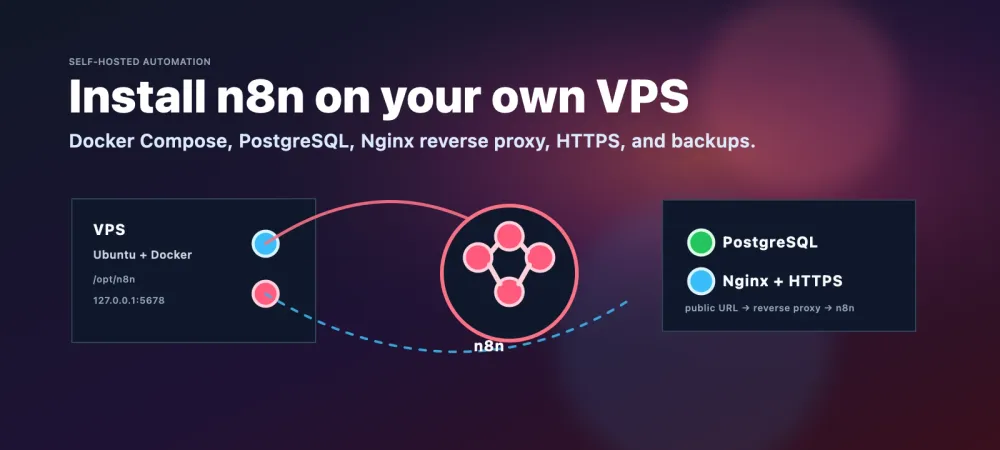
n8n is a workflow automation platform, in the same family as Zapier and Make, that you can run on your own server. Self-hosting it gives you control of your data, your credentials, your webhook URLs, and your upgrade schedule. It also means no per-execution pricing: once it's running, the only cost is the server.
This guide sets up n8n the way you'd want it in production: Docker Compose, a real PostgreSQL database, and Nginx handling HTTPS in front. n8n itself is never exposed directly to the internet. Every command was checked against a real deployment on an Ubuntu 24.04 DigitalOcean droplet running n8n 2.38.7, with the domain replaced by n8n.example.com.
For a reference of n8n's nodes and expressions once it's running, see the n8n cheatsheet.
How the pieces fit together
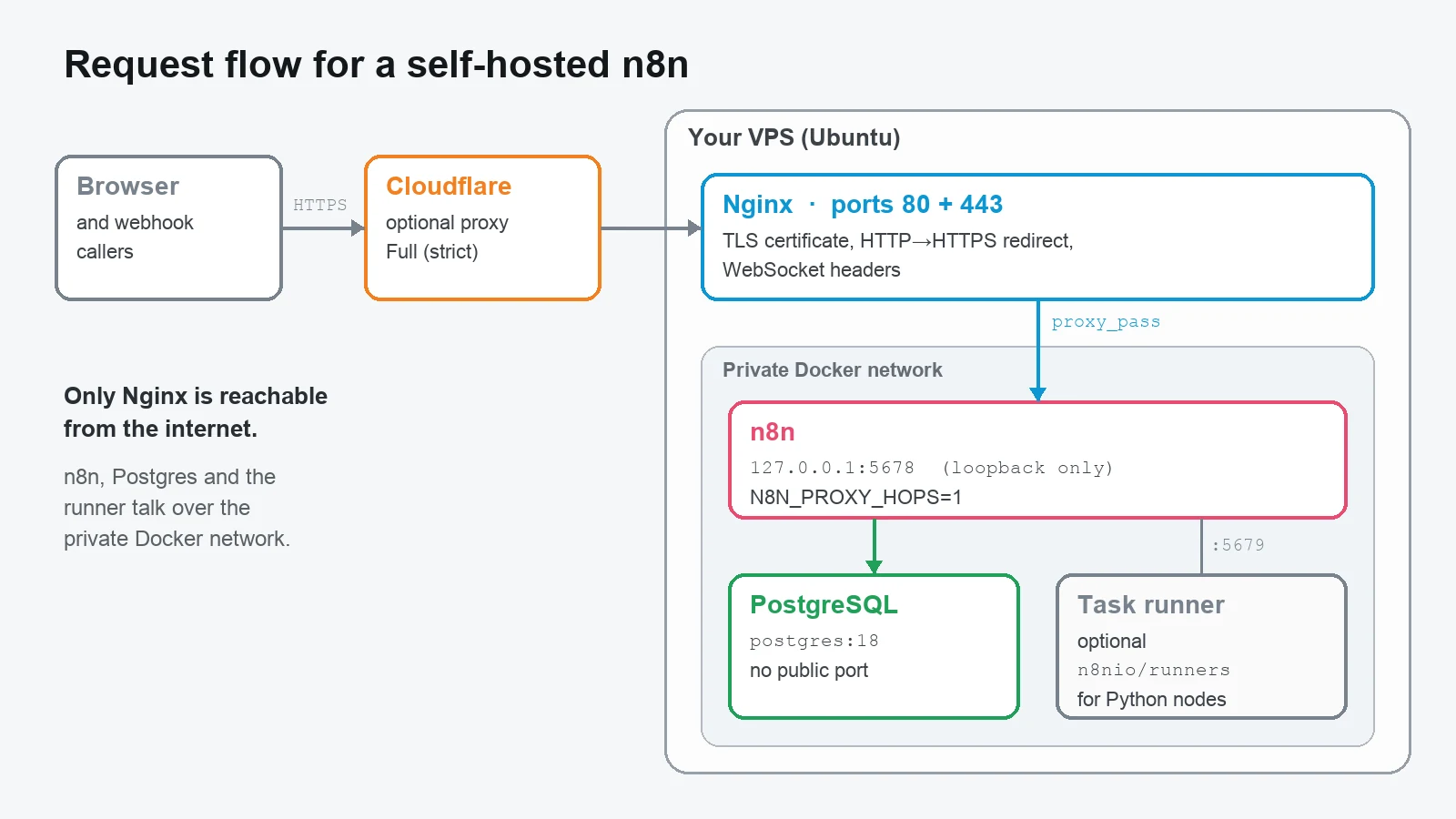
- Nginx is the only thing listening publicly, on ports 80 and 443. It handles HTTPS and forwards traffic to n8n.
- n8n listens on
127.0.0.1:5678, the server's loopback address, so nothing on the internet can reach it directly. - PostgreSQL stores workflows, credentials, and execution history. It has no published port at all, only the private Docker network.
- Your encryption key lives in a
.envfile. n8n uses it to encrypt every saved credential, so losing it means losing access to those credentials.
Before you start
- A Linux VPS. Ubuntu 22.04 or 24.04 is the easy path. For a small personal instance, 1 vCPU and 2 GB of RAM is a comfortable starting point. Add swap if you're on 1 GB.
- Root or sudo SSH access.
- A domain or subdomain you can point at the server, like
n8n.example.com. - Ports 80 and 443 open in your cloud provider's firewall.
Point DNS at the server before you begin, since certificates need it:
| Type | Name | Value |
|---|---|---|
| A | n8n | your VPS's public IPv4 address |
If you use Cloudflare, you can turn on its proxy (the orange cloud) once the origin works. Use Cloudflare's Full (strict) SSL mode with a trusted certificate on the server, which the certificate step below gives you.
Step 1: Install Docker and Docker Compose
Docker's convenience script installs Docker Engine and the Compose plugin from Docker's own repository:
curl -fsSL https://get.docker.com | sudo sh
docker --version
docker compose version
You need Compose v2, which runs as docker compose with a space. The deployment behind this guide used Docker 29.1.3 and Compose 2.40.3. Newer versions are fine.
Step 2: Create the project folder
sudo mkdir -p /opt/n8n
sudo chmod 700 /opt/n8n
cd /opt/n8n
This folder holds the Compose file and the .env file. Mode 700 means only root can read it, which matters because .env will contain your database password and encryption key.
Step 3: Generate secrets straight into the .env file
This writes the file and generates both secrets in one go, so they never appear on screen or in your shell history. Change the domain and timezone first:
cd /opt/n8n
cat > .env <<ENV
POSTGRES_DB=n8n
POSTGRES_USER=n8n
POSTGRES_PASSWORD=$(openssl rand -hex 24)
N8N_ENCRYPTION_KEY=$(openssl rand -hex 32)
N8N_HOST=n8n.example.com
WEBHOOK_URL=https://n8n.example.com/
GENERIC_TIMEZONE=America/Los_Angeles
ENV
chmod 600 .env
Back up the encryption key now, in a password manager, not on the same server. If the server dies and you restore the database without this key, every saved credential in n8n becomes unreadable. The ENV marker is deliberately unquoted: that's what makes the shell run the two openssl commands while writing the file.
Step 4: Create compose.yml
services:
  postgres:
    image: postgres:18-alpine
    restart: unless-stopped
    environment:
      POSTGRES_DB: ${POSTGRES_DB}
      POSTGRES_USER: ${POSTGRES_USER}
      POSTGRES_PASSWORD: ${POSTGRES_PASSWORD}
    volumes:
      - postgres_data:/var/lib/postgresql
    healthcheck:
      test: ["CMD-SHELL", "pg_isready -U ${POSTGRES_USER} -d ${POSTGRES_DB}"]
      interval: 5s
      timeout: 5s
      retries: 10

  n8n:
    image: docker.n8n.io/n8nio/n8n:2.38.7
    restart: unless-stopped
    ports:
      - "127.0.0.1:5678:5678"
    environment:
      DB_TYPE: postgresdb
      DB_POSTGRESDB_HOST: postgres
      DB_POSTGRESDB_DATABASE: ${POSTGRES_DB}
      DB_POSTGRESDB_USER: ${POSTGRES_USER}
      DB_POSTGRESDB_PASSWORD: ${POSTGRES_PASSWORD}
      N8N_ENCRYPTION_KEY: ${N8N_ENCRYPTION_KEY}
      N8N_HOST: ${N8N_HOST}
      N8N_PROTOCOL: https
      N8N_PORT: 5678
      WEBHOOK_URL: ${WEBHOOK_URL}
      GENERIC_TIMEZONE: ${GENERIC_TIMEZONE}
      TZ: ${GENERIC_TIMEZONE}
      NODE_ENV: production
      N8N_PROXY_HOPS: 1
      N8N_SECURE_COOKIE: "true"
      N8N_ENFORCE_SETTINGS_FILE_PERMISSIONS: "true"
    volumes:
      - n8n_data:/home/node/.n8n
    depends_on:
      postgres:
        condition: service_healthy

volumes:
  postgres_data:
  n8n_data:
A few lines are doing more than they look:
n8n:2.38.7, not:latest. 2.38.7 is n8n's current stable release as I write this. Pinning it means an ordinary restart can never quietly pull in a major upgrade. You choose when to upgrade, as described below."127.0.0.1:5678:5678"publishes n8n on loopback only. This matters more than it looks: Docker writes its own firewall rules, so a plain"5678:5678"would expose n8n to the whole internet even with UFW enabled.N8N_PROXY_HOPS: 1tells n8n there's exactly one proxy (Nginx) in front, so it trusts the forwarded headers and builds correct webhook URLs./var/lib/postgresqlis the correct mount point for the Postgres 18 images. Older guides mount/var/lib/postgresql/data, which was right for Postgres 17 and earlier. Don't switch paths on an existing install without a backup and a migration plan.
Step 5: Start the stack and check it locally
cd /opt/n8n
docker compose up -d
docker compose ps
curl -I http://127.0.0.1:5678/
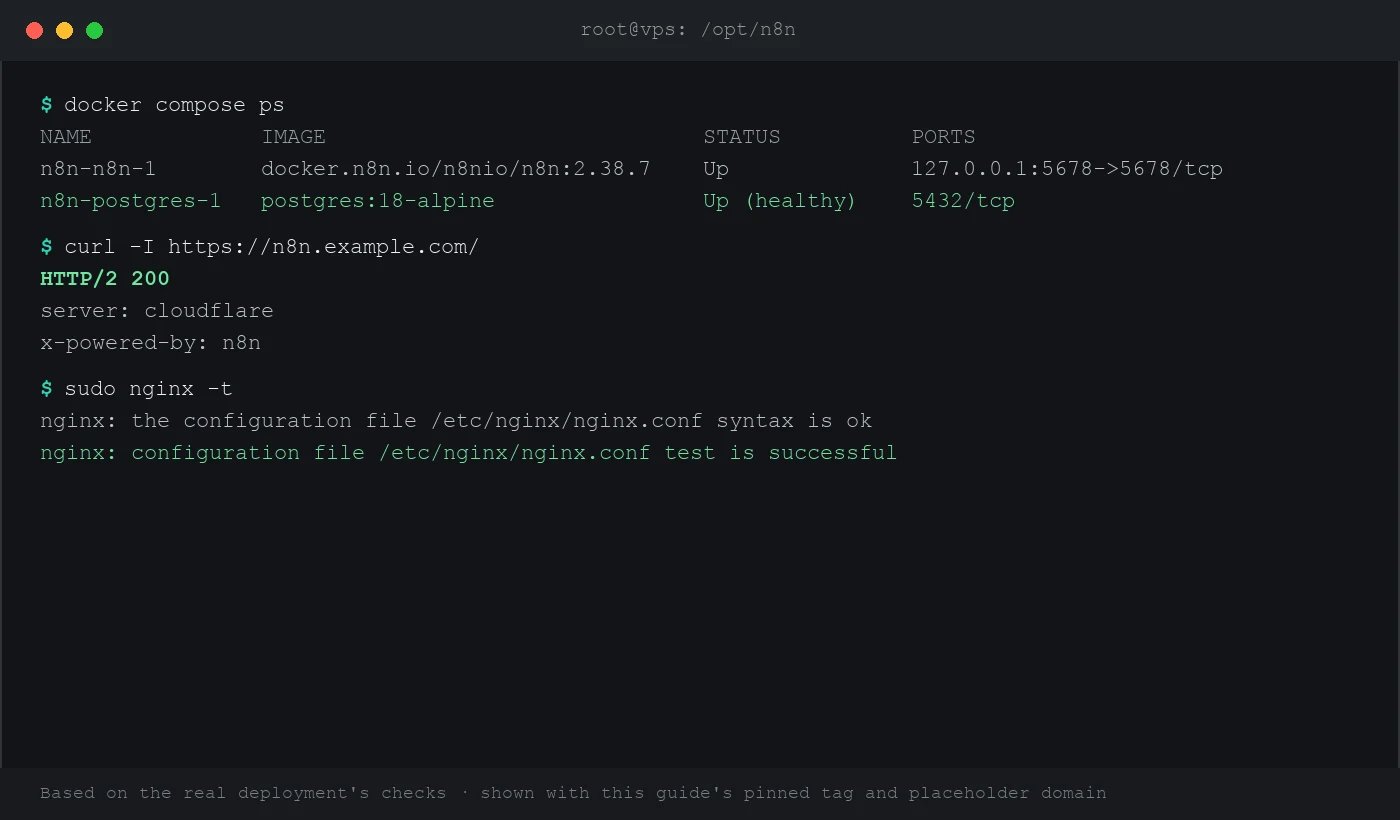
docker compose ps should show n8n Up and Postgres Up (healthy), and the curl should return 200. Check this before touching Nginx: if it fails here, the problem is in n8n or Compose, not the proxy. docker compose logs --tail=80 n8n will usually say why.
Step 6: Get a certificate and add the Nginx proxy
The certificate
Pick the option that matches your server:
- Plain Ubuntu with Nginx:
sudo apt install certbot python3-certbot-nginx. Create the server block below first, then runsudo certbot --nginx -d n8n.example.com. Certbot fills in the certificate lines and sets up renewal for you. - aaPanel: add the site in the panel and issue a Let's Encrypt certificate from the site's SSL tab. aaPanel keeps its vhost files under
/www/server/panel/vhost/nginx/. - Behind the Cloudflare proxy: a Cloudflare Origin Certificate works well with Full (strict) mode. Avoid a self-signed certificate except as a temporary step, since it forces the weaker Full mode.
The Nginx server block
map $http_upgrade $connection_upgrade {
    default upgrade;
    ''      close;
}

server {
    listen 80;
    listen [::]:80;
    server_name n8n.example.com;
    return 301 https://$host$request_uri;
}

server {
    listen 443 ssl;
    listen [::]:443 ssl;
    http2 on;
    server_name n8n.example.com;

    ssl_certificate     /etc/letsencrypt/live/n8n.example.com/fullchain.pem;
    ssl_certificate_key /etc/letsencrypt/live/n8n.example.com/privkey.pem;

    client_max_body_size 50m;

    location / {
        proxy_pass http://127.0.0.1:5678;
        proxy_http_version 1.1;
        proxy_set_header Host $host;
        proxy_set_header X-Real-IP $remote_addr;
        proxy_set_header X-Forwarded-For $proxy_add_x_forwarded_for;
        proxy_set_header X-Forwarded-Proto $scheme;
        proxy_set_header Upgrade $http_upgrade;
        proxy_set_header Connection $connection_upgrade;
        proxy_buffering off;
        proxy_read_timeout 3600s;
        proxy_send_timeout 3600s;
    }
}- The WebSocket lines (
UpgradeandConnection) are what keep the editor's live updates working. Without them, the canvas appears to load but executions never report back. http2 on;is the syntax for Nginx 1.25.1 and later. On older Nginx, delete that line and writelisten 443 ssl http2;instead.client_max_body_size 50mlets workflows receive file uploads larger than Nginx's 1 MB default.
Test before you reload, every time:
sudo nginx -t && sudo systemctl reload nginx

# aaPanel's Nginx lives in its own path:
/www/server/nginx/sbin/nginx -t && /www/server/nginx/sbin/nginx -s reload
Step 7: Open it and claim the owner account right away
curl -I https://n8n.example.com/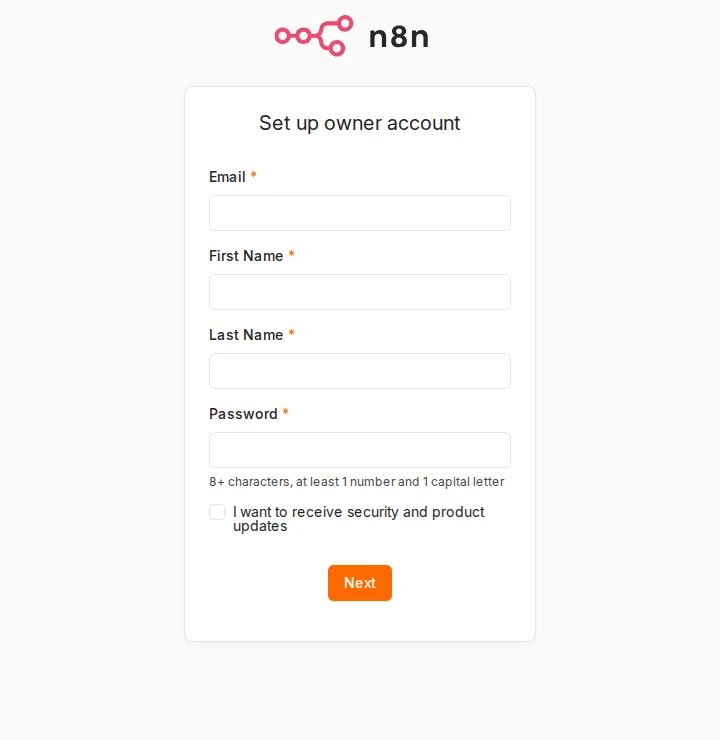
Do this immediately. Until someone fills in this form, anyone who finds the URL can create the owner account and take control of the instance, including every credential you later add. Either complete it the moment HTTPS works, or keep strangers out while you finish by adding allow YOUR.IP.ADDRESS; deny all; inside the location block. Remove that once you're set up.
Pick a strong password, then turn on two-factor authentication under Settings → Personal. If an agent is doing the deployment, create the owner account yourself rather than letting it choose a password.
Step 8: Set up real backups
Two things hold your data: the Postgres database, which has your workflows, credentials, and executions, and the n8n data volume. Back up both, plus .env:
mkdir -p /root/backups/n8n && cd /opt/n8n

# 1. Database dump
docker compose exec -T postgres pg_dump -U n8n -d n8n | gzip > /root/backups/n8n/db-$(date +%F).sql.gz

# 2. n8n data volume (Compose names it <folder>_n8n_data)
docker run --rm -v n8n_n8n_data:/data -v /root/backups/n8n:/backup alpine \
  tar czf /backup/n8n-data-$(date +%F).tgz -C /data .

# 3. Config and secrets
tar czf /root/backups/n8n/config-$(date +%F).tgz compose.yml .env
Put those three commands in a script and run it nightly from cron. Then copy the backups somewhere that isn't this server, because a backup sitting on the same disk dies with that disk. The rsync section of the Linux cheatsheet covers pulling them to another machine.
To restore a database dump into a fresh stack:
gunzip -c /root/backups/n8n/db-2026-09-13.sql.gz | docker compose exec -T postgres psql -U n8n -d n8nTest a restore at least once. A backup you've never restored is only a hope.
Updating n8n safely
- Read the release notes for every version between yours and the target, especially across a major version.
- Back up using the commands above.
- Change the image tag in
compose.yml, for example2.38.7to the new version. - Pull and restart:
docker compose pull && docker compose up -d && docker compose logs --tail=80 n8n.
If something breaks, put the old tag back and run docker compose up -d again. That rollback is only this easy because the tag is pinned. With :latest, you wouldn't know which version to return to.
Optional: Python Code nodes
Out of the box, JavaScript Code nodes work, but Python ones don't. Since n8n 2.0, Python code runs in a separate task runner container rather than inside n8n, and the stock image doesn't include one. You'll see a log warning about the Python runner. It's harmless until you actually need Python.
To enable Python, add a shared token to .env (echo "N8N_RUNNERS_AUTH_TOKEN=$(openssl rand -hex 32)" >> .env), add these three lines to the n8n service's environment, and add a runner service whose image version matches n8n exactly:
  n8n:
    environment:
      # ...existing variables, plus:
      N8N_RUNNERS_MODE: external
      N8N_RUNNERS_BROKER_LISTEN_ADDRESS: 0.0.0.0
      N8N_RUNNERS_AUTH_TOKEN: ${N8N_RUNNERS_AUTH_TOKEN}

  task-runners:
    image: n8nio/runners:2.38.7
    restart: unless-stopped
    environment:
      N8N_RUNNERS_TASK_BROKER_URI: http://n8n:5679
      N8N_RUNNERS_AUTH_TOKEN: ${N8N_RUNNERS_AUTH_TOKEN}
    depends_on:
      - n8n
The broker listens on port 5679, but only on the private Docker network. Don't publish it. When you update n8n, update the runner tag to the same version.
Troubleshooting
| Symptom | Likely cause and fix |
|---|---|
| 502 Bad Gateway | n8n isn't running, or is still starting. Check docker compose ps and docker compose logs --tail=80 n8n. |
| Editor loads, but executions never update | WebSocket headers are missing from the Nginx block. Check the Upgrade and Connection lines, then reload Nginx. |
| Webhook URLs show localhost or :5678 | WEBHOOK_URL isn't set or doesn't match your domain. Fix it in .env, then run docker compose up -d. |
| Login loops, or the cookie is rejected | N8N_SECURE_COOKIE requires HTTPS end to end. Make sure you're on the https:// URL, and that Nginx sends X-Forwarded-Proto. |
| "Credentials could not be decrypted" | N8N_ENCRYPTION_KEY changed or was lost. Restore the original value from your backup. A new key cannot unlock old credentials. |
| Postgres never becomes healthy | Usually a wrong volume path or leftover data from an earlier attempt. Check docker compose logs postgres. |
Security checklist
- Owner account claimed right after launch, with two-factor authentication turned on.
- n8n bound to
127.0.0.1, with port 5678 never opened publicly. .envis mode 600 and the folder is 700. The encryption key is backed up off the server.- SSH uses keys only. Password login is disabled, and fail2ban or similar is running.
- Nightly backups are copied off-server, and a restore has been tested.
- The image tag is pinned, and you upgrade on purpose after reading release notes.
A licensing note: n8n's self-hosted Community Edition is free under its Sustainable Use License. That covers running it for yourself or your company's internal automations. Offering n8n itself as a paid hosted service to others needs a commercial license.