You're three coffees deep into building a client's site, the layout finally looks right on your laptop, and now you want to know one thing: does it actually work on a phone? Not the browser dev tools' phone simulation — an actual phone, on actual cellular data, with actual fat thumbs testing the actual tap targets.
Or maybe it's the opposite problem: the client wants to see progress right now, and "let me deploy it somewhere first" is a fifteen-minute detour you don't have time for.
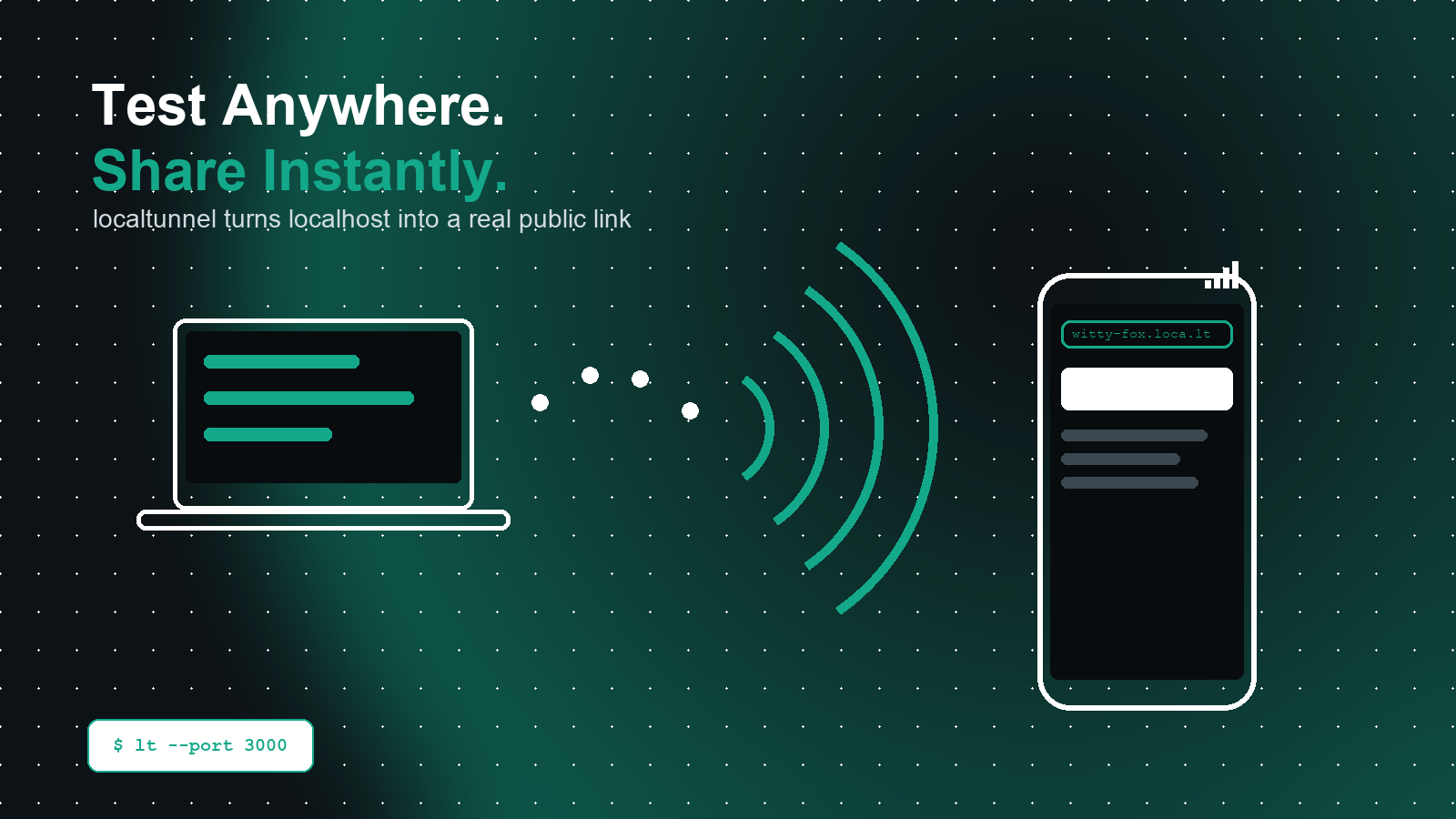
Both problems have the same one-line answer: localtunnel. It takes whatever's running on your laptop — localhost:3000, localhost:8080, whatever port your dev server picked — and hands you back a real, public, HTTPS address that anyone can open. No deploy, no DNS, no router config, no port forwarding. Turn it on when you need it, close the terminal when you don't, and it's gone.
The five-minute setup
localtunnel is a small Node.js tool. If you can run npm, you already have everything you need.
npm install -g localtunnelThat gives you the lt command everywhere on your machine. If you'd rather not install anything globally, npx works just as well and leaves nothing behind:
npx localtunnel --port 3000That's the entire installation story. No account to create, no API key to copy, no dashboard to configure first.
Turning it on
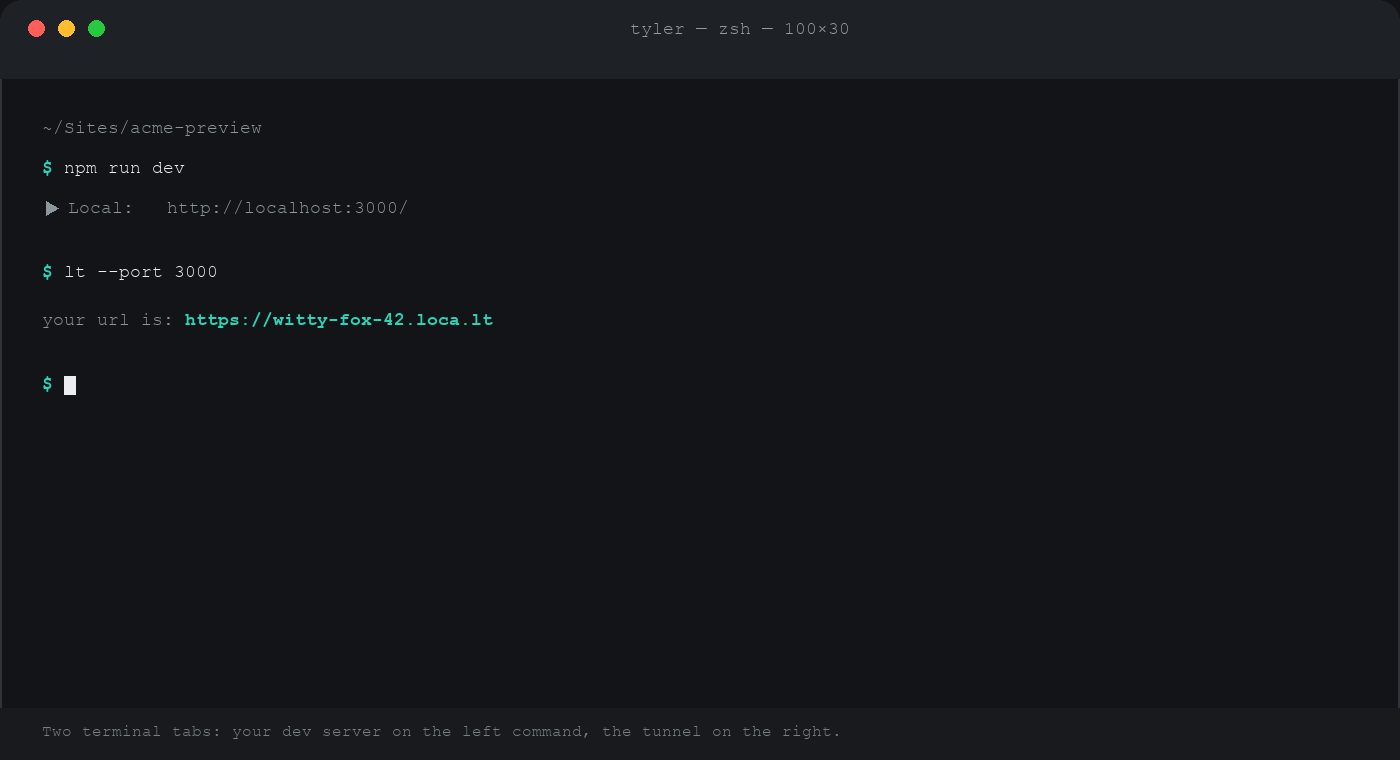
Start your site the way you normally do — npm run dev, php artisan serve, whatever your stack uses — and note which port it's on. Then, in a second terminal tab:
lt --port 3000Within a second or two you'll get back something like:
your url is: https://witty-fox-42.loca.ltThat URL is live right now, on the real internet, forwarding every request straight to your local dev server. Paste it anywhere you'd paste a normal link.
The first time anyone opens it in a browser, they'll see a plain "Friendly Reminder" page before your site loads — that's the free public tunnel service's own anti-abuse click-through, not a bug in your site. One click and it's gone for that browser.
The actual payoff: testing on a real phone
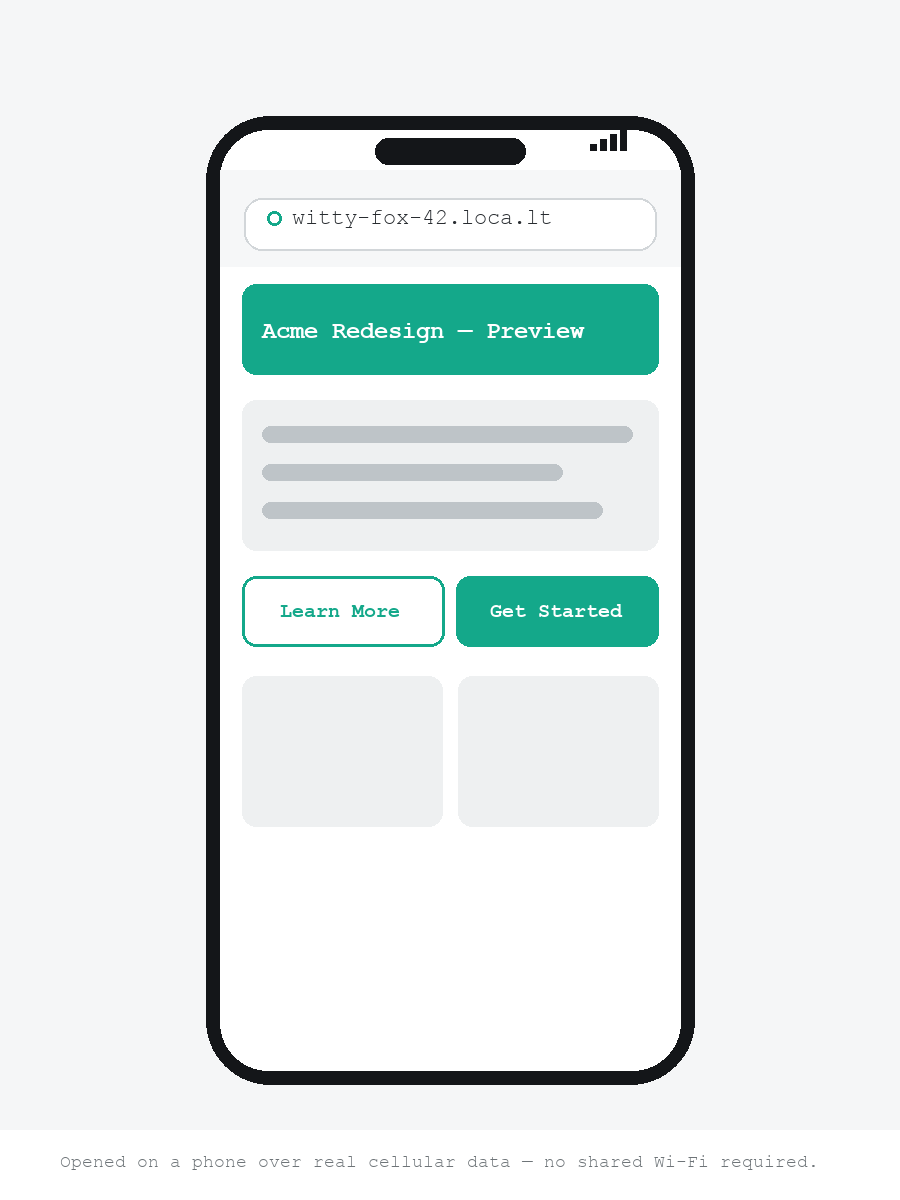
This is the part that makes localtunnel worth having installed permanently. Open that https://…loca.lt URL on your phone over Wi-Fi or cellular data — it doesn't need to be on the same network as your laptop at all, which is the whole point. That's a real mobile Safari or Chrome, a real screen size, a real touch target, a real network round-trip, not a resized browser window pretending to be a phone.
Things that only show up this way:
- Tap targets that are technically big enough but feel wrong — a button that's 44px in the simulator can still feel cramped under an actual thumb.
- Real network latency — a page that loads instantly over your home Wi-Fi can reveal a slow API call once it's on LTE.
- iOS Safari quirks — viewport units, safe-area insets, and date/time inputs all behave slightly differently than desktop Chrome's device emulation suggests.
- Mixed-content and CORS surprises — testing over a real HTTPS tunnel URL catches issues that
localhostquietly lets slide.
No cable, no same-Wi-Fi requirement, no messing with your router's local IP and hoping your phone can reach it. Just the URL, on any network, anywhere.
Showing a client (or a friend) work in progress
The same trick works for anyone, anywhere. Send the tunnel URL to a client for a quick look, or to a friend across the country to bug-test something before it ships. They see it exactly as it exists on your machine right now — including whatever change you just saved, since it's your actual dev server behind the link, not a snapshot.
Want a name that's easier to say over the phone than witty-fox-42? Ask for one:
lt --port 3000 --subdomain acme-preview
# your url is: https://acme-preview.loca.lt
Subdomains are first-come, first-served on the shared free service — not reserved to you — so treat it as a nice-to-have for one session, not a permanent address.
On, off, whenever you want
This is the other half of why localtunnel is genuinely handy day-to-day: it's completely disposable. There's nothing to "turn off" in a settings panel, no subscription to cancel, no lingering process to remember about.
- To turn it on: run
lt --port 3000. Takes about two seconds. - To turn it off: press Ctrl+C in that terminal, or just close the tab. The tunnel — and the public URL — disappears immediately. Nobody can reach your machine through that link anymore.
That's it. No cleanup, nothing to remember to revoke later. Run it for the five minutes you're actually sharing your screen with a client, then kill it the moment you're done.
One safety note before you share a link
Because it's this easy to expose your laptop to the internet, it's worth being deliberate about what you point it at. The short version: only tunnel a dev site with dev data (never a real client's live database), close the tunnel the moment you're done sharing it, and never leave one running unattended overnight.
The full write-up — including how to add a quick password in front of anything sensitive and how to run your own private relay instead of the shared public one — is in the localtunnel cheatsheet's Safety Guide tab, along with every CLI flag and the Node.js API for scripting it into a test suite.
The takeaway
localtunnel earns a permanent spot in the toolbox for exactly this reason: it turns "let me deploy this somewhere so you can see it" into a fifteen-second command, works for real mobile testing that a browser's device simulator can't fake, and cleans up after itself the instant you stop it. Install it once, and it's there the next time you need someone — a phone, a client, a friend three states away — to look at what you're building, right now, without a deploy in between.